TicketBook Assistant lets you get answers and guidance about TicketBook using natural language. You describe what you need, and the Assistant explains how the relevant feature works and how to configure it for your service agreements.
TicketBook Assistant is powered by Atlassian Rovo.
You can ask about:
-
creating and configuring contracts
-
choosing the right clause type for your service agreement
-
period types, carry-over, and borrowing rules
-
amends and how they affect quota and consumption
-
reading and interpreting the Contract Report
-
SLA List Report and SLA Success Rate Report
-
Issue View Page Panel and Customer Portal Panel settings
-
app-level and contract-level permissions
-
how to use any feature within TicketBook
Example requests:
-
Which clause type should I use to limit the number of hours logged per month?
-
What happens to unused quota at the end of a period?
-
How do I add extra quota to a single month of a contract?
-
What does the OVER QUOTA status mean in the Contract Report?
-
How can I see SLA success rates grouped by month and project?
-
How do I show a customer’s contract usage on the JSM customer portal?
-
Why can’t a user see a contract in the Contract Definitions screen?
How it works
TicketBook Assistant can be accessed from two places:
From the TicketBook main screen:
-
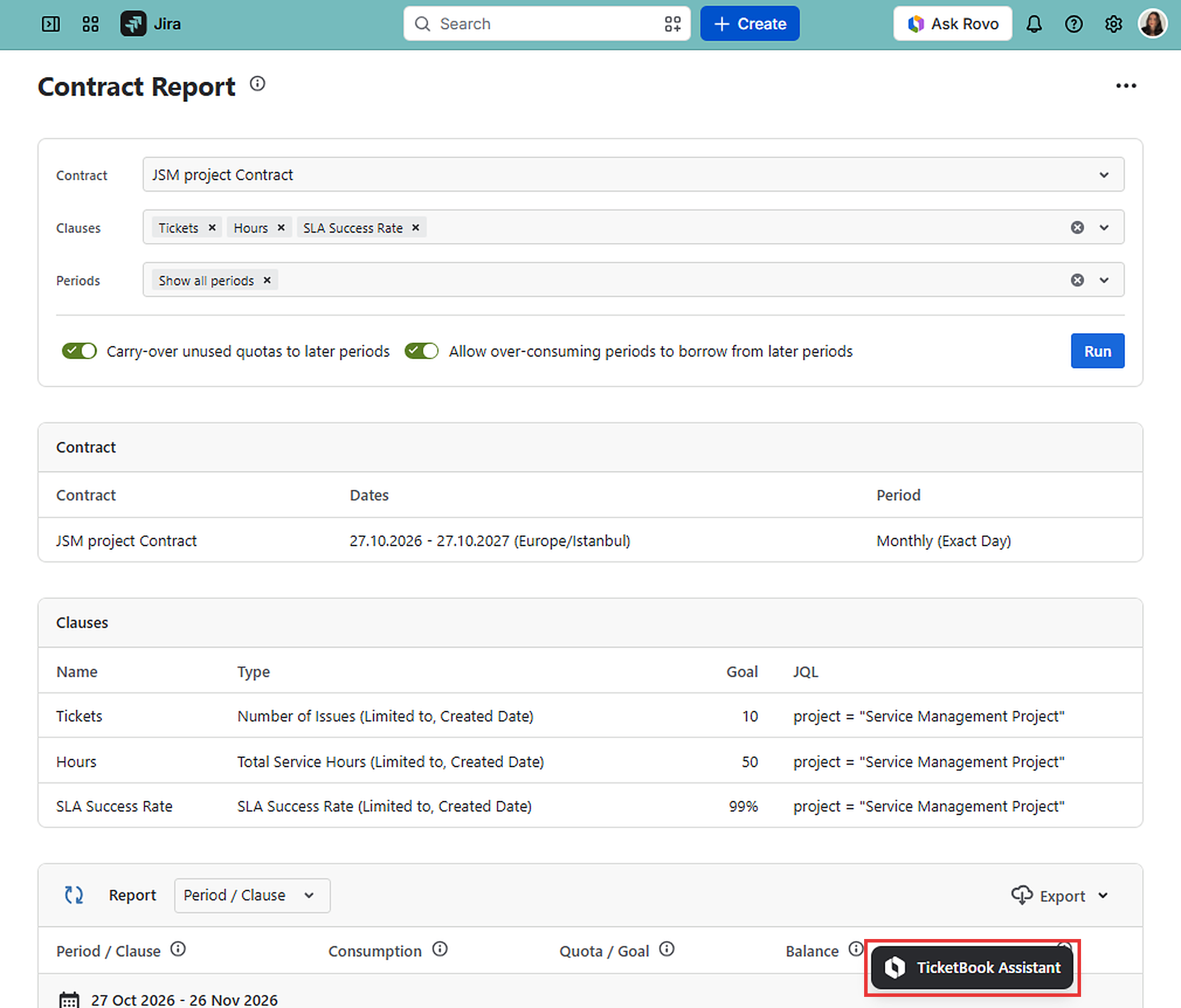
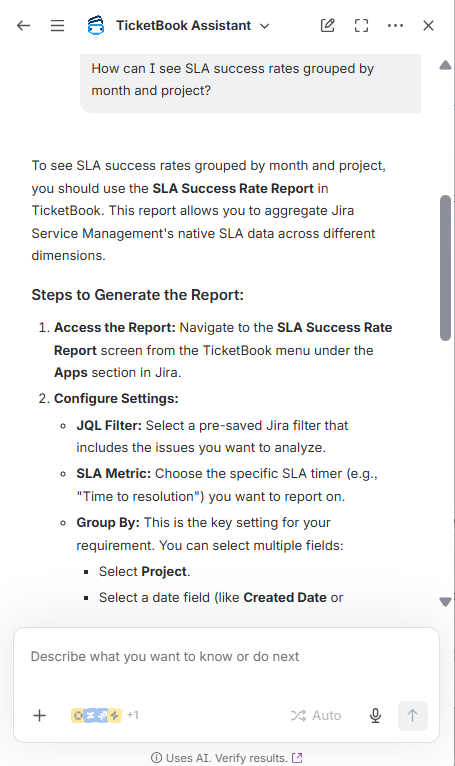
Click the TicketBook Assistant button located in the bottom-right corner of the TicketBook main screen.
-
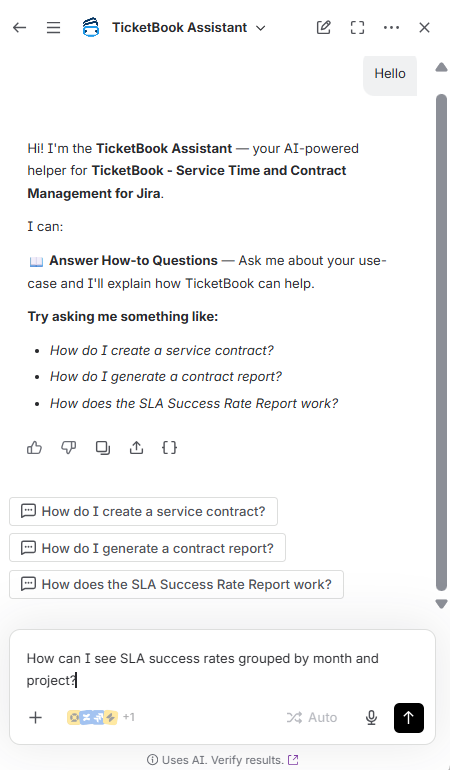
Enter a question or request in plain language.
-
The assistant analyzes your input and:
-
-
guides you step by step on how to use the relevant TicketBook feature, or
-
provides a direct answer about TicketBook features or configuration.
-
-
Follow the guidance provided to define your contract, configure clauses, run a report, or navigate to the relevant setting.
From the Work Item View Page:
-
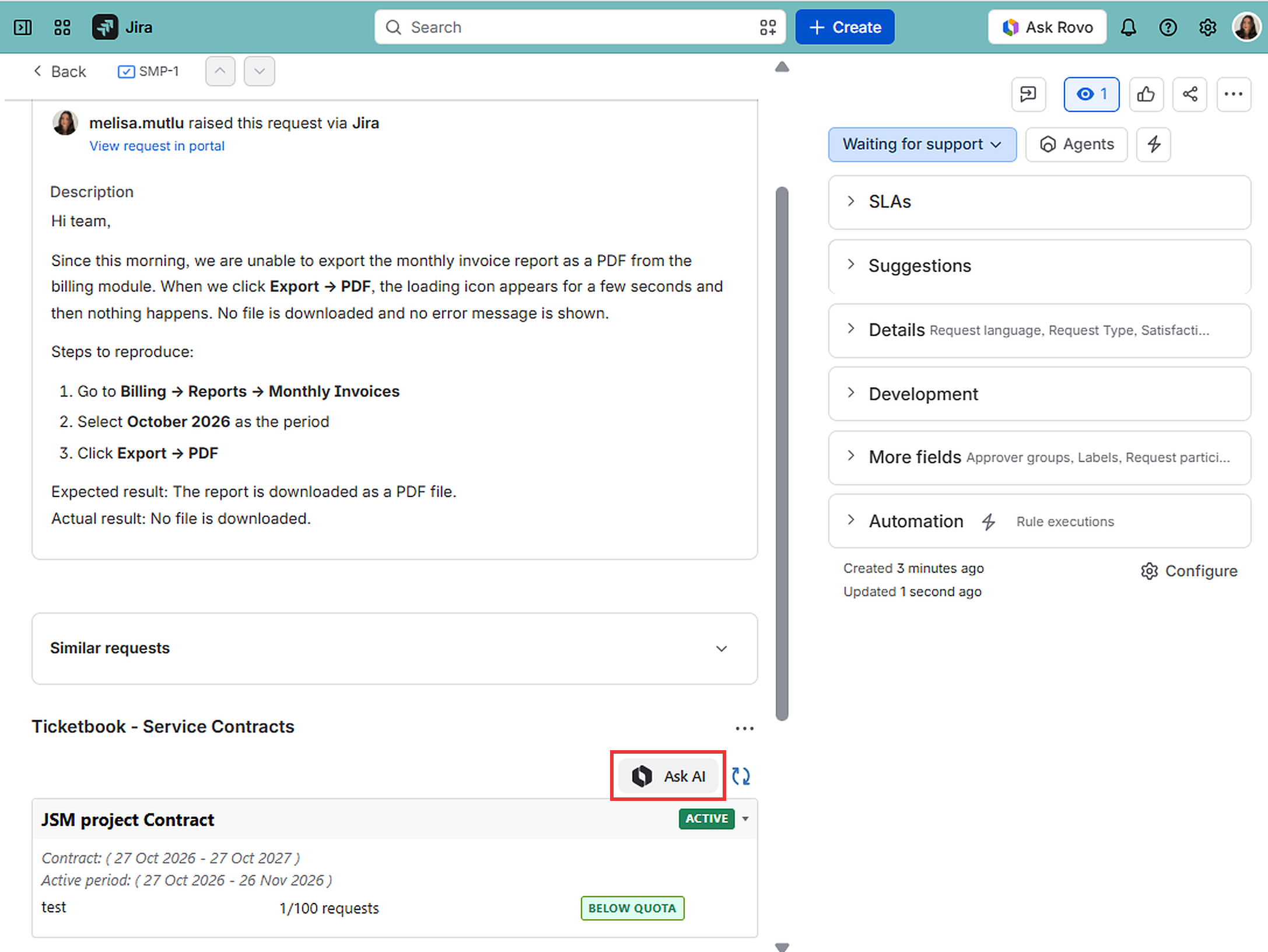
Open any Jira issue that displays the TicketBook section.
-
Locate the TicketBook section on the issue view page. Depending on the Page Settings, it appears either in the center panel or in the right sidebar.
-
Click the Ask AI button located in the upper-right corner of the TicketBook section.
-
Enter your question or request in plain language and follow the guidance provided.
Notes
-
TicketBook Assistant is focused exclusively on TicketBook - Service Time and Contract Management for Jira. It is not able to answer general Jira questions or questions about other apps.
-
The assistant provides guidance based on the full capabilities of TicketBook, including Contract Definitions, Clauses, the Contract Report, the SLA List Report, the SLA Success Rate Report, and the Issue View and Customer Portal panels.
-
The assistant does not create or modify contracts, and it does not display contract data or report results within the chat. It guides you on how to find and view this information within the app.
-
Some complex questions may require refinement or follow-up questions.
TicketBook Assistant is a Rovo Agent with customized instructions. It does not depend on an AI model that is hosted externally, and surely doesn’t egress any customer data. All the AI capabilities of this agent are directly from Rovo. All the responses you get from this agent come from Rovo, and they are subject to the same limitations, permissions checks, and safeguards of Rovo.
Only users who can already access Rovo can use this agent. Currently, the only way to disable this agent is to disable Rovo altogether on your Jira.
Restricting Access to TicketBook Assistant
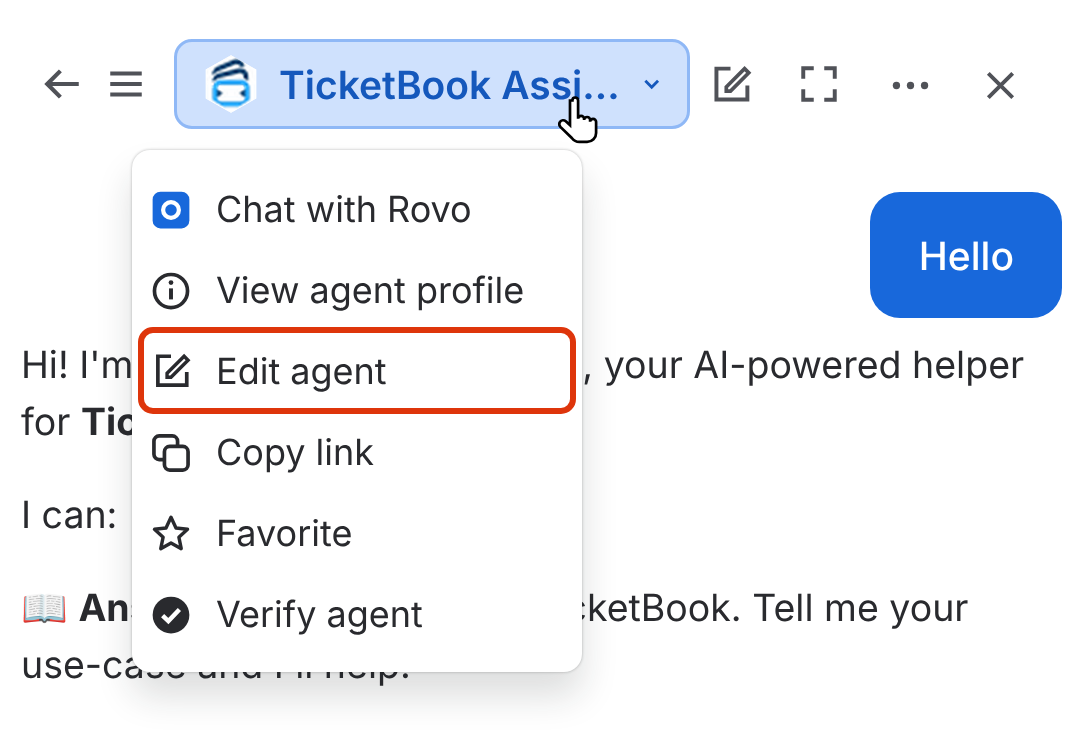
Organization administrators can restrict access to Ticketbook Assistant by selecting Edit agent from the agent menu in Rovo and disabling the User access toggle. For more information, see Rovo agent permissions and governance.