
This article explains how the User/AI Activity Report in Historian - Issue History for Jira can be used to find which users are making changes in Jira and which users are not, which in turn can be used to review non-contributing users as candidates for removal, thus freeing available Jira licenses and reducing cost.
The report lists every user who made at least one change to the selected work items during the selected period. It shows how many work items each user created, updated, resolved, transitioned, commented on, or logged work on. This shows which licensed users are using Jira, how active each of them is, and which users have not contributed at all.
Business Need
Your organization has a lot of users with assigned Jira licenses, but many of them rarely use Jira or don’t use it at all. However, they are still occupying a license and creating cost.
You want to see which users are active in Jira and which users are not contributing to any work items. Then you can review non-contributing users, mark them as candidates for removal, free up licenses, and reduce the overall cost of Jira.
What Makes This Hard
Jira’s user management screens show who has a license, but not how much each user contributes to work items. Finding this information means going through the history of every work item to see who created, updated, transitioned, or commented on it. With many users and projects, collecting and counting these activities user by user is time-consuming.
The Approach
The User/AI Activity report in Historian can be used for this purpose.
The report asks you to enter a valid JQL to select the work items to inspect and a date interval.
Given these parameters, the report processes all the histories of those work items and prepares a list report. The report shows each user as a row. Each column shows how many times the user performed a specific activity.
Licensed users who do not appear in the report did not make any changes to selected work items during the selected period.
Configuring the Report
-
Open the Historian User/AI Activity page (Apps → Historian - Issue History for Jira → User/AI Activity).
-
Select the work items to analyze.
-
Use the Basic Filter to select all the projects you want to review, or
-
Use the JQL Filter with a query such as
project IN ('SP', 'MTP', 'CS')to include work items from multiple projects. -
Set the History Trim to the period you want to analyze, for example, January 1, 2026 – December 31, 2026.
-
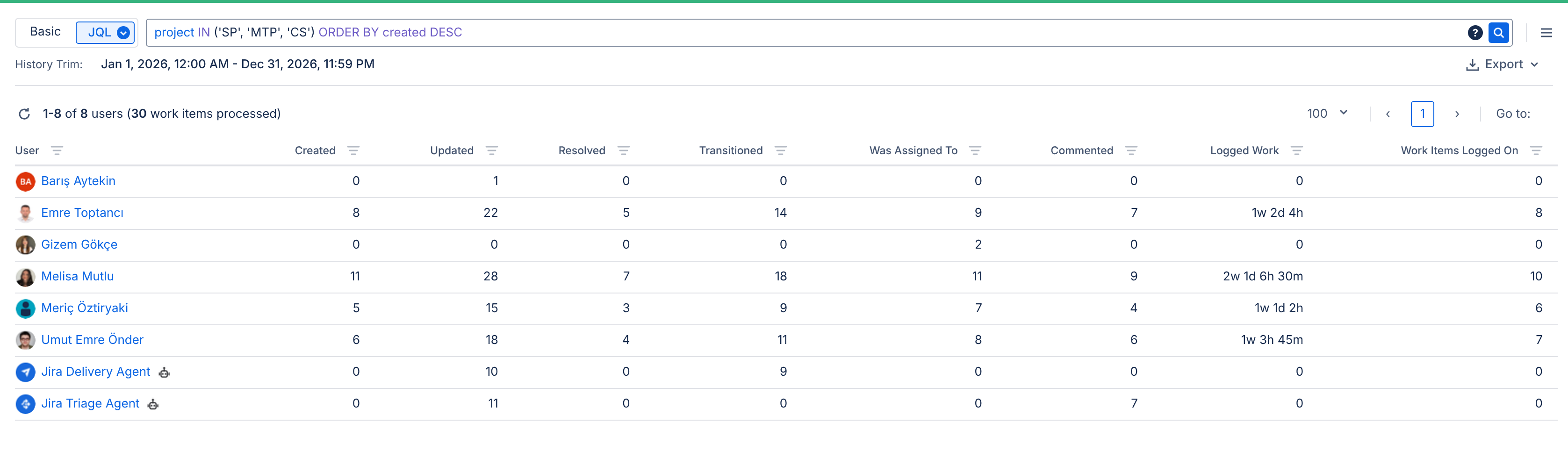
-
Click the Updated column header to sort (

-
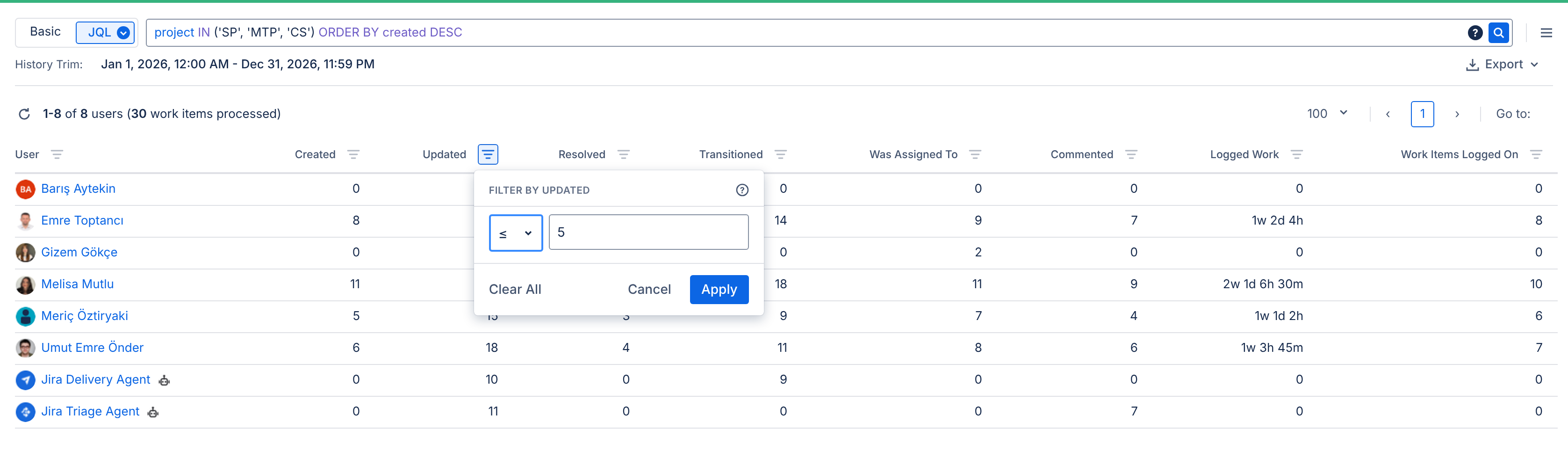
Optionally, click the filter icon next to a column header to list only users below a certain activity level.
-
Select an operator such as ≤ and enter a number (for example, 5).
-
Click Apply.
-
-
The report counts only activities on work items, such as creating, updating, transitioning, commenting, and logging work. Users who only view work items or dashboards without making any changes do not appear in the report.
-
The report includes only work items you have permission to view. To get a complete picture, run the report with a user who can view all relevant projects.
Drill Down Report
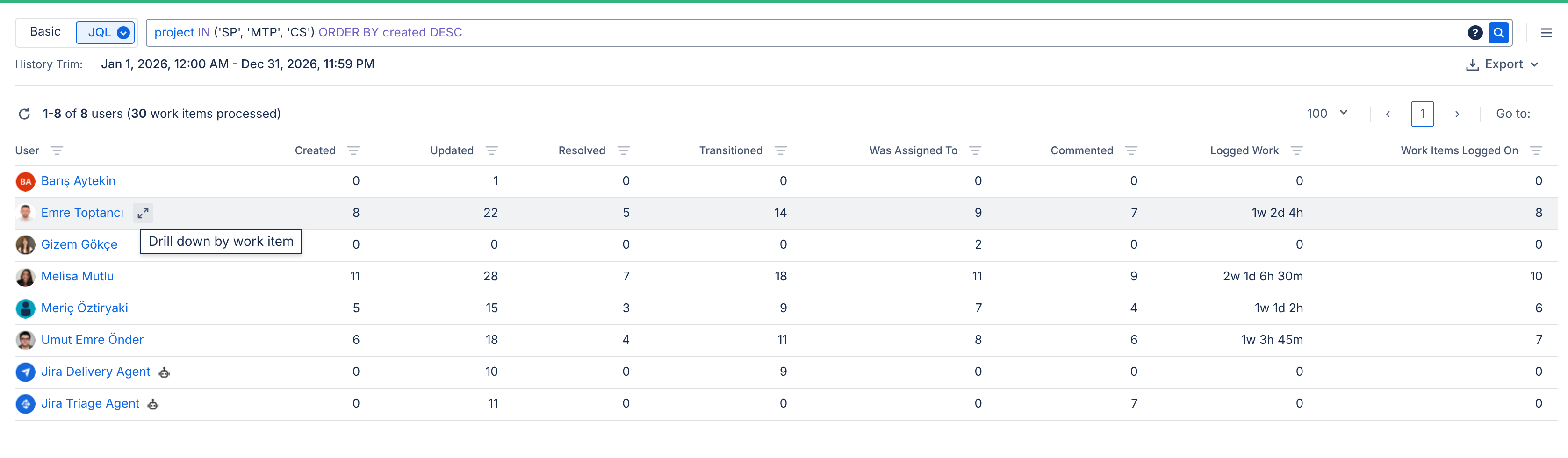
To see the details of a specific user’s activity, click the Drill Down icon in the user’s row. The Drill Down report lists each work item the user interacted with and what they did on it.
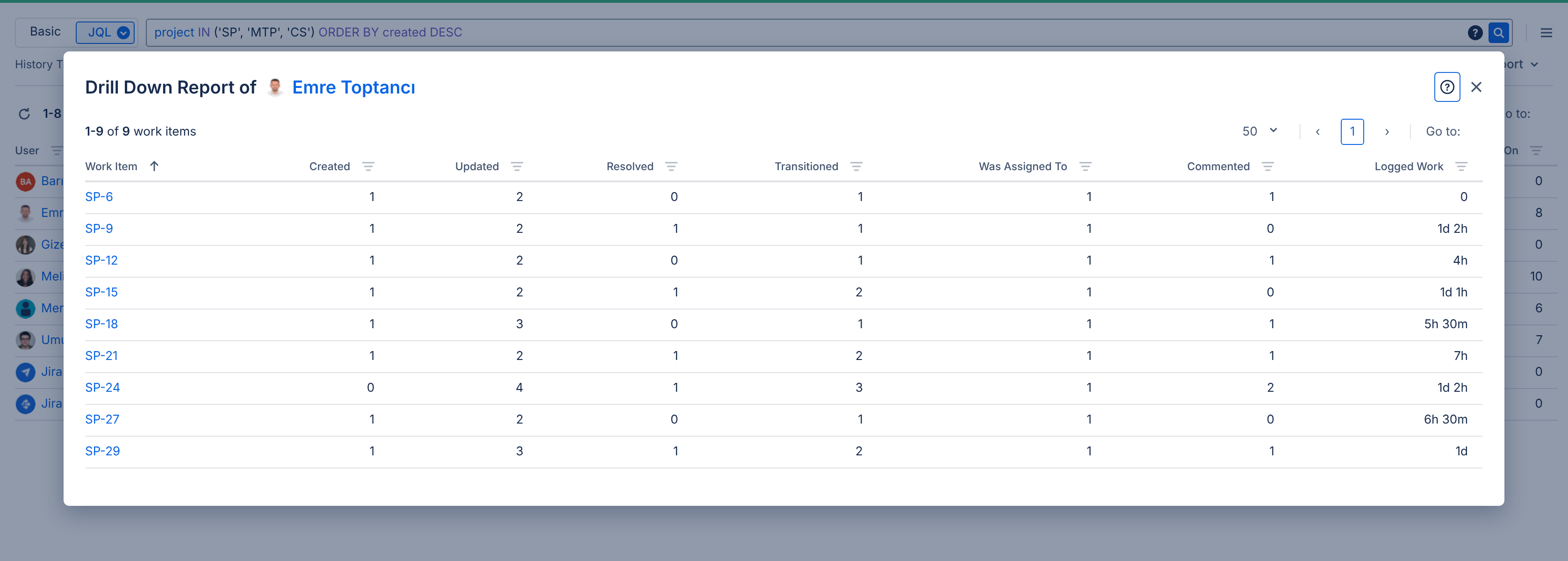
The results let you see which users are actively contributing, identify users who rarely or never use Jira, and make informed decisions about license assignments.
AI agents and apps are also listed in the report and marked with an icon next to their name, so you can tell them apart from human users. (If an AI agent acts on behalf of a user, Jira records that activity under the user, so it is counted as the user’s activity.)
For more information about this report, see User/AI Activity Report.