
The User/AI Activity report provides an overview of how users have interacted with your Jira work items. It analyzes the change history of the selected work items and summarizes each user's activities, including work item creation, field updates, status transitions, assignee changes, comments, and logged work.
The report includes human users, AI agents, and apps, allowing you to compare their contributions side by side.
This report is particularly useful when you want to understand:
-
Which users have contributed to the work items and what they did.
-
The activities of AI agents and apps.
-
How much time each user has logged and how many work items they have worked on.
Accessing User/AI Activity
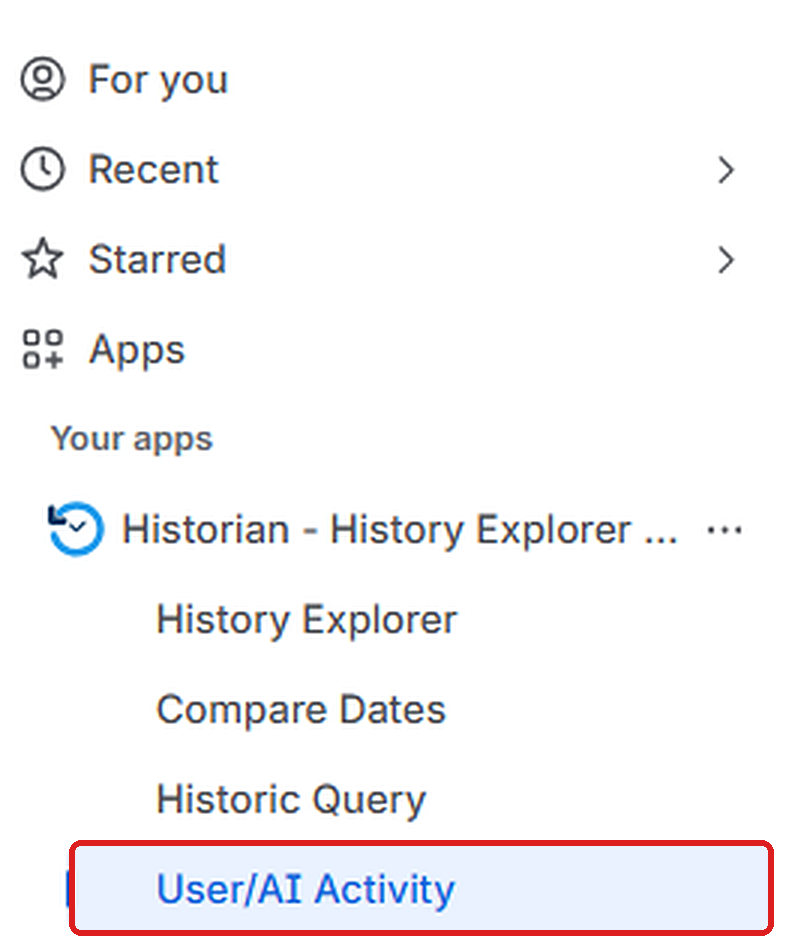
Navigate to Apps → Historian - Issue History for Jira → User/AI Activity to open it.
Understanding the Report
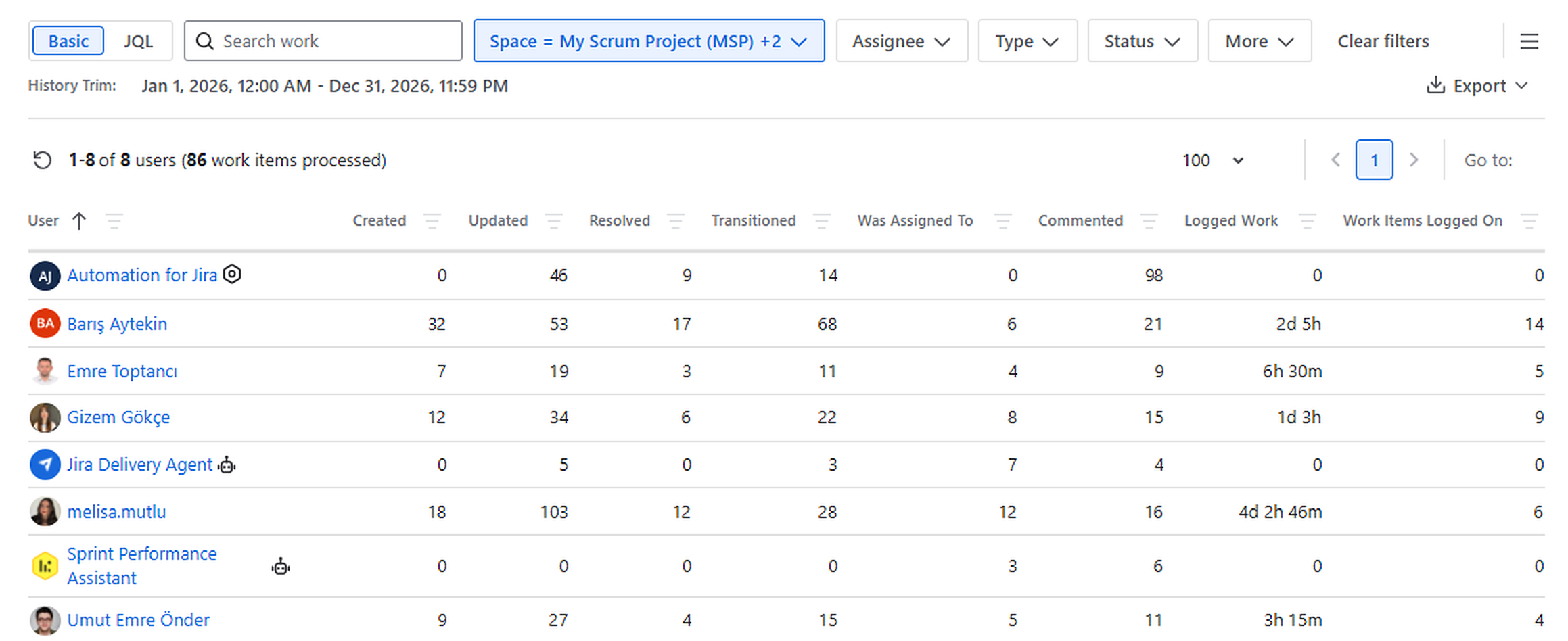
Each row represents a user who made at least one change to the selected work items. Columns summarize the user's activity across those work items.
-
User: The person, AI agent, or app responsible for the activity. AI agents and apps are identified by an icon next to their name.
-
Created: The number of work items created. Values entered during creation are counted here, not under Updated.
-
Updated: The number of field-change events. Each event counts once, regardless of how many fields were changed.
-
Resolved: The number of times a value was set in the Resolution field.
-
Transitioned: The number of times a user changed a work item's status.
-
Was Assigned To: The number of times the user was assigned to a work item.
-
Commented: The number of comments added by the user.
-
Logged Work: The total time logged, displayed in Jira's configured time format.
-
Work Items Logged On: The number of work items on which the user logged time.
If an AI agent acts on behalf of a user, Jira records its activities under that user, so they are reported as the user’s activities. Only activities of an AI agent acting as itself are reported under the AI agent.
Drill Down
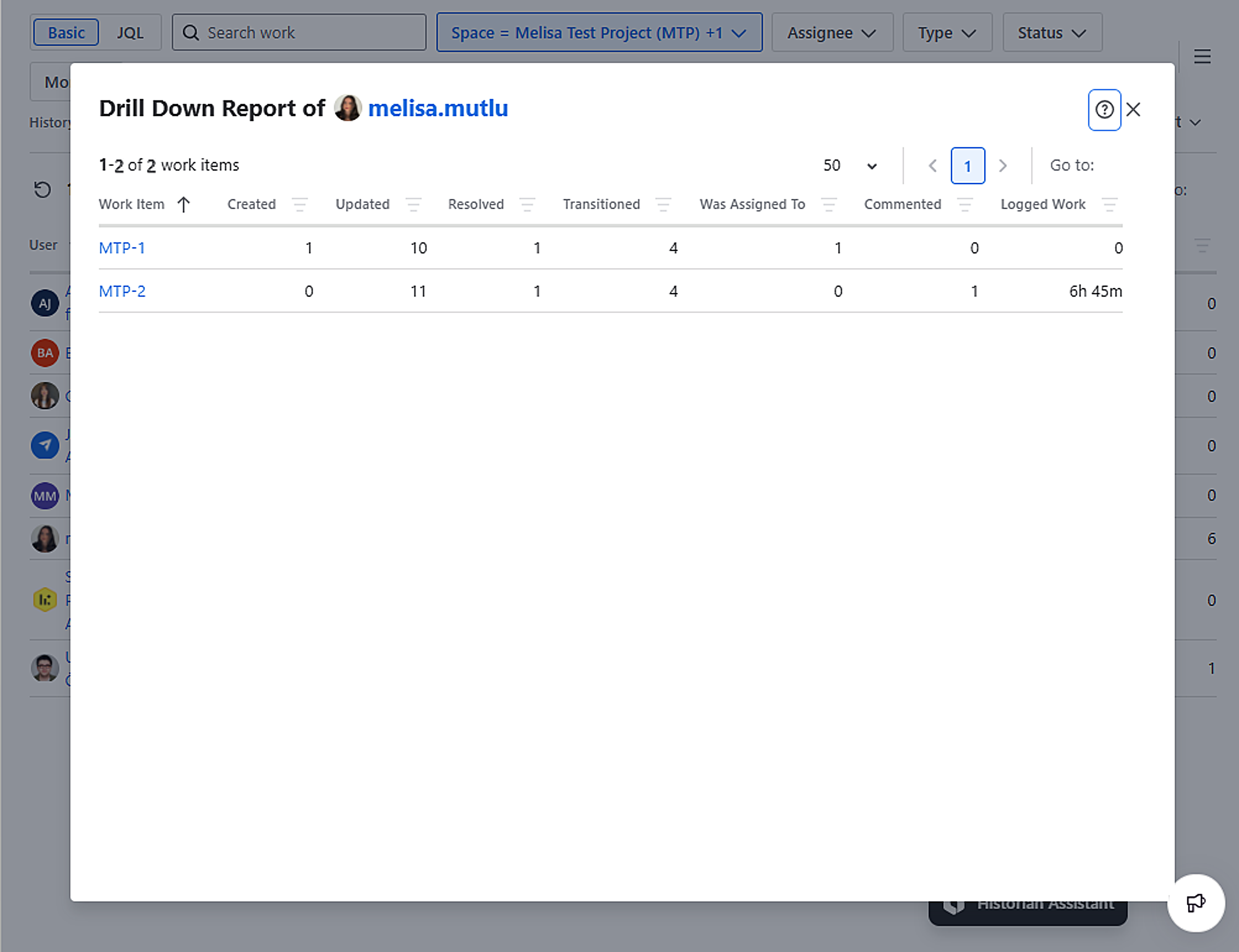
The Drill Down Report provides a detailed breakdown of a user's activity by work item. Click the Drill Down icon ( 
Each row represents a work item the user interacted with. The columns display the same activity types as the main report, showing how many times the user created, updated, resolved, transitioned, or commented on the work item, as well as the time logged.
Issue Filtering Options
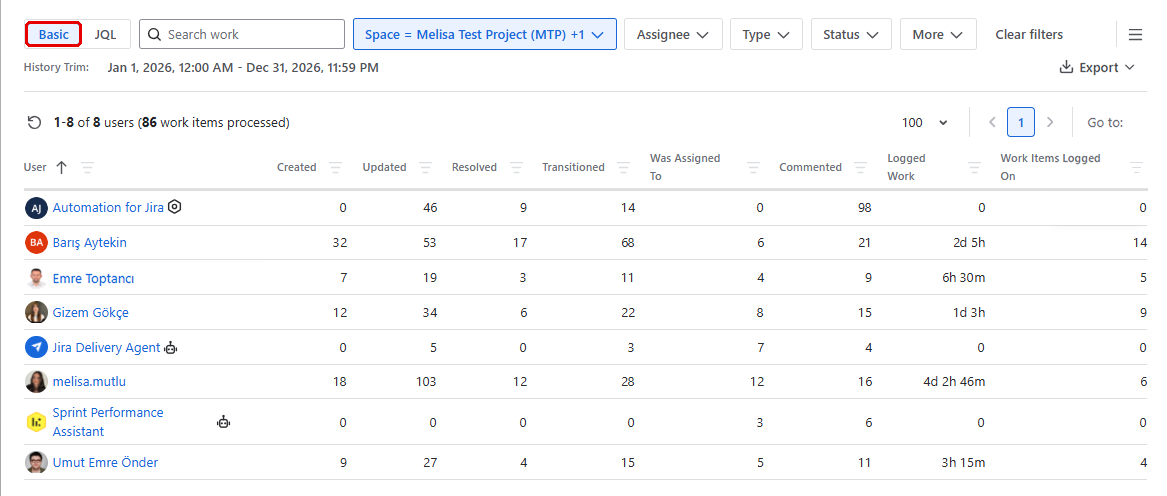
At the top of the page, you can define which work items to include in the User/AI Activity Report using either the Basic Filter or JQL Filter option. Both options allow you to select the work items whose activity you want to analyze.
Basic Filter
The Basic Filter provides a visual way to select work items using predefined Jira fields such as project, status, assignee, and priority. You can combine these criteria to narrow down the results and focus on the relevant work items.
JQL Filter
The JQL Filter allows you to select work items using custom Jira Query Language (JQL) queries. It supports more advanced filtering conditions and provides greater flexibility when selecting work items for analysis.
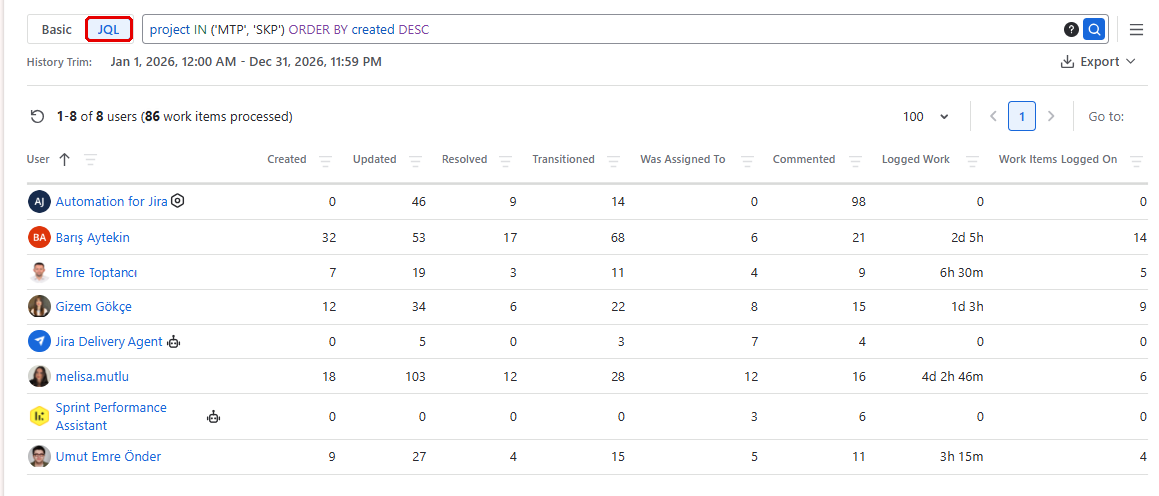
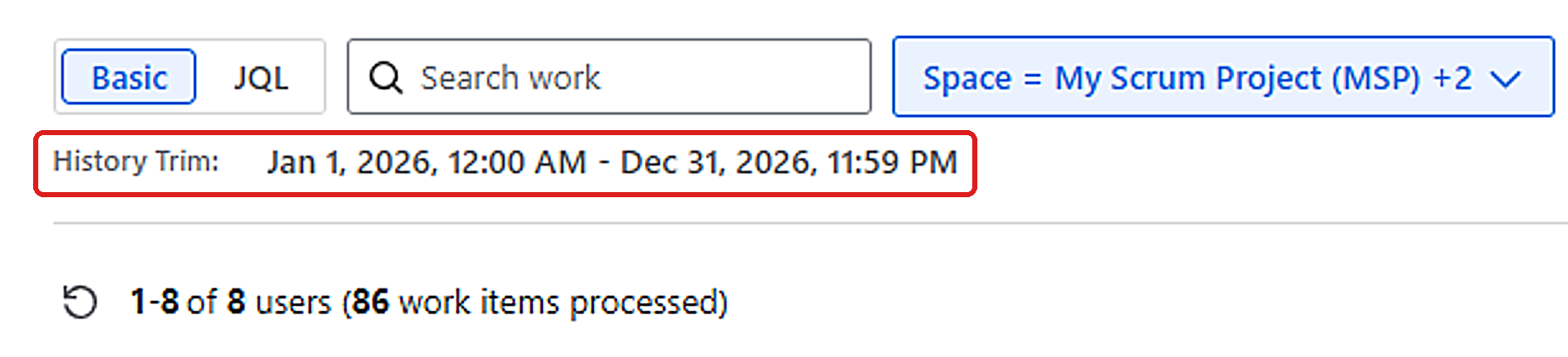
History Trim
History Trim defines the time period covered by the report. It reports users' activities on the selected work items within the selected date range, allowing you to answer questions such as, “Who did what in the last month?”
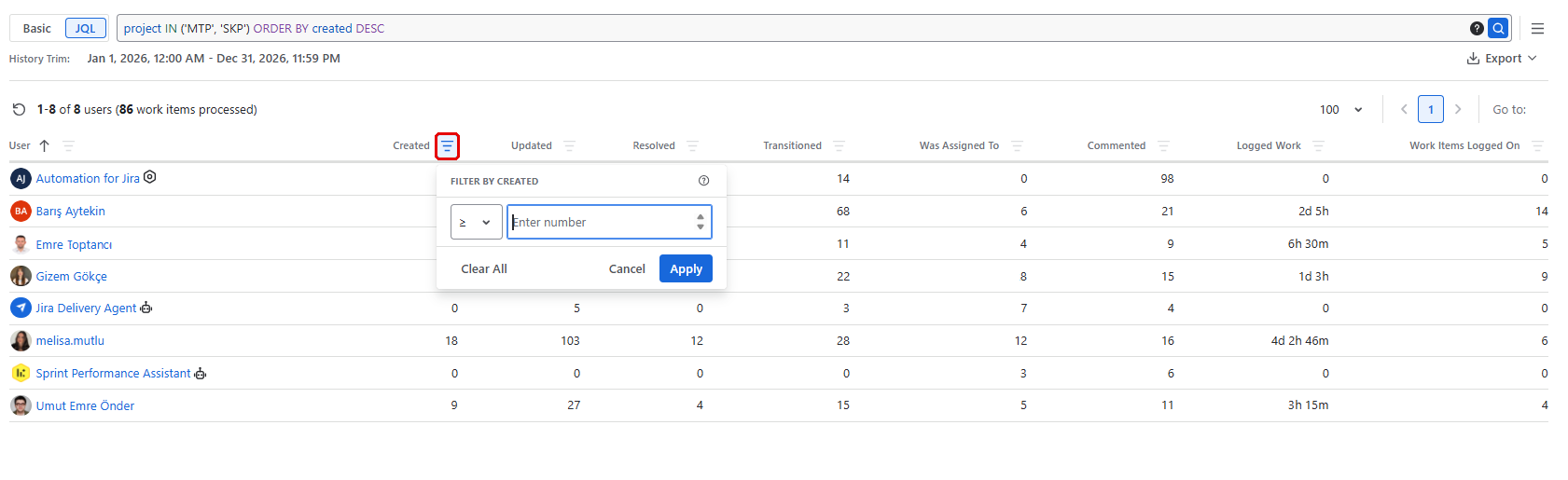
Filtering
Click the filter icon next to a column header to filter users by that metric. Pick an operator (for example, ≥) and enter a number, then click Apply. Click Clear All to remove the filter.
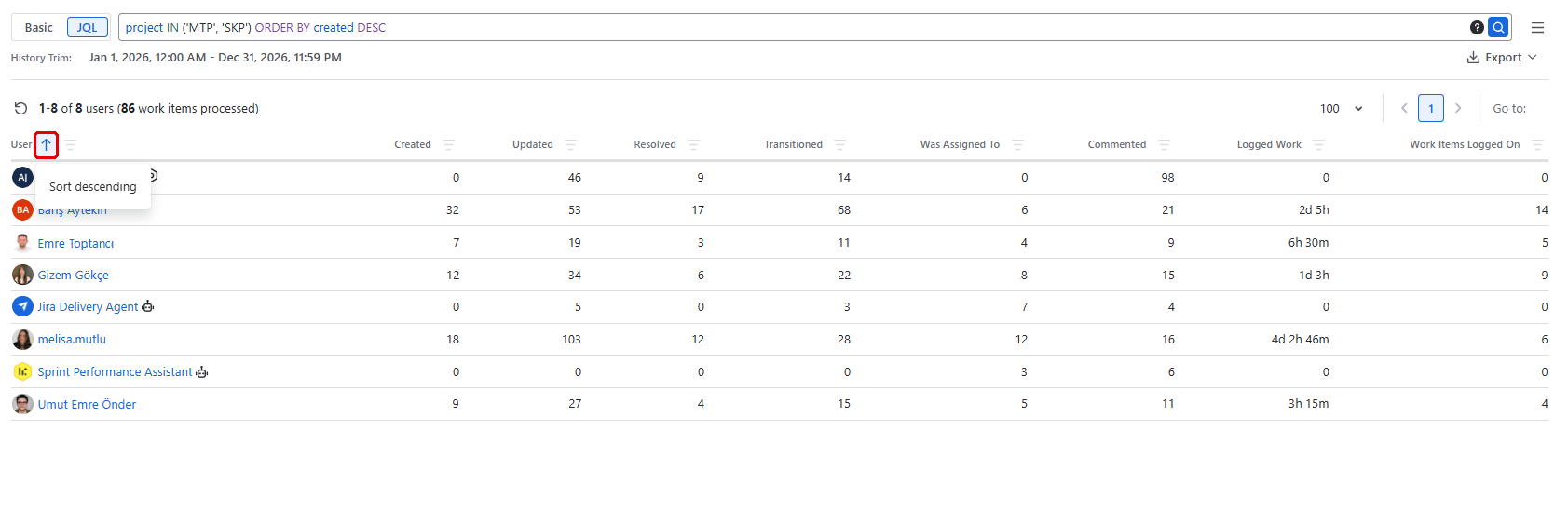
Sorting
Click a column header to sort the table by that column. Click it again to switch between ascending and descending order. An arrow next to the header shows the active sort direction.
Export
You can export the generated report in XLSX or CSV format.
For more information, please see: