Parent-Child Listeners provide field synchronization across parent and child issue hierarchies in Jira Cloud (including Sub-tasks, Epics to Stories, and Jira Plans (formerly Advanced Roadmaps) parent-child levels).
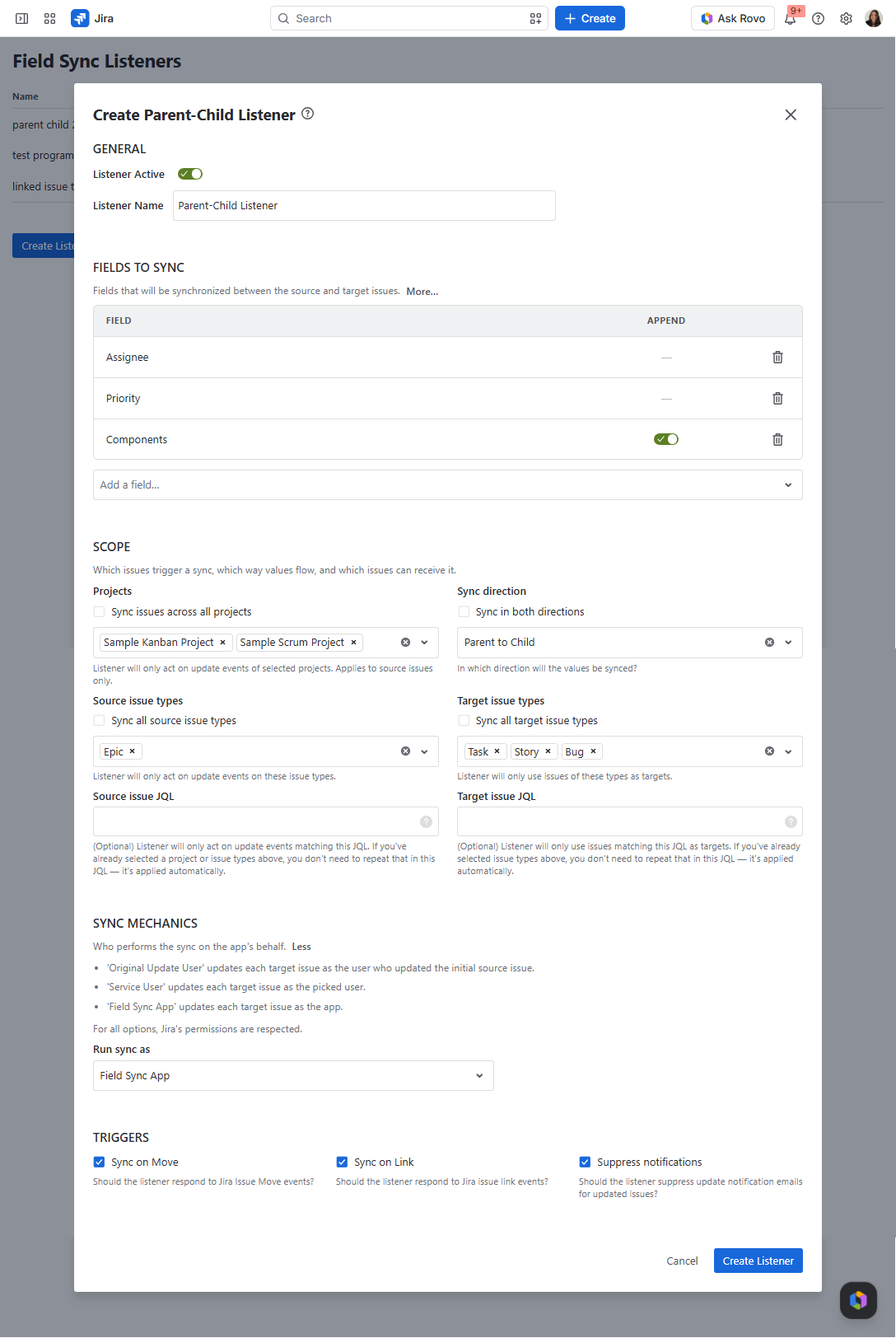
A sample Parent-Child Listener's Configuration page is shown below.
General
Listener Active
This switch is enabled by default when creating a listener. Turn it off to disable the listener. When disabled, the listener will not respond to changes in any issues.
Listener Name
Enter a unique and descriptive name to identify the listener.
Fields to Sync
Select fields that will be synchronized between the source and target issues. Both system and custom fields are supported.
Field Sync copies field values between issues without resolving to contents of the field. Some complex custom field types introduced by plugins might not be compatible with simple value copy.
Append
The Append option determines how source field values are applied to target issues.
-
Selected: Source field values are added to the existing values in the target issue.
-
Not selected: Target issue field values are replaced with the source issue's values.
This option is available for supported multi-select system fields and built-in custom field types. Custom field types provided by other apps are not yet supported.
Scope
Projects
Choose the Jira projects in which the listener will respond to events.
-
Sync issues across all projects: Select this checkbox to enable the listener across all Jira projects in your instance.
-
Specific Project Selection: Leave Sync issues across all projects unchecked and select the desired projects from the dropdown menu. The listener will respond only to update events occurring in the selected projects.
Sync direction
Choose the direction in which field values will flow between Parent and Child issues:
-
Sync in both directions: Check this box to enable bidirectional synchronization. Field value updates on Parent issues will sync to Child issues, and updates on Child issues will sync back to Parent issues.
-
Single Direction Selection: To sync values in only one direction, leave Sync in both directions unchecked and select your preferred direction from the dropdown menu:
-
Parent to Child: Field values will sync only from Parent issues to Child issues.
-
Child to Parent: Field values will sync only from Child issues to Parent issues.
-
Source Issue Types
Select issue types that can trigger a sync event on the source side:
-
Sync all source issue types: Check this box to allow all issue types to trigger update events.
-
Specific Source Issue Type Selection: To limit triggers to specific issue types instead, leave Sync all source issue types unchecked and select target types from the dropdown menu. The listener will only act on update events occurring on these specified issue types.
Target Issue Types
Select issue types that can receive synced values on the target side:
-
Sync all target issue types: Check this box to allow all issue types to be updated as targets.
-
Specific Target Issue Type Selection: To limit targets to specific issue types instead, leave Sync all target issue types unchecked and select target types from the menu. The listener will only use issues matching these selected types as targets.
Source Issue JQL (Optional)
Specify an optional JQL query to filter source issues:
-
Enter a valid JQL query to restrict triggers. The listener will only act on update events on issues matching this JQL.
-
If you have already selected a project or issue types above, you do not need to repeat those criteria in this JQL as they are applied automatically.
Target Issue JQL (Optional)
Specify an optional JQL query to filter target issues:
-
Enter a valid JQL query to restrict target selection. The listener will only use issues matching this JQL as targets.
-
Since any valid JQL can be used, Target Issue JQL setting provides great flexibility to filter target issues.
SYNC MECHANICS
Choose who performs the sync on the app's behalf:
Run Sync As
Select the identity Field Sync will use to update target issues:
-
Original Update User: Target issues are updated using the account of the user who made the change to the source issue.
-
Service User: Target issues are updated using the selected Service User account. This option is useful when the user who updates the source issue does not have permission to view or edit the target issue. The target issue history will show the Service User as the one who made the update.
-
Field Sync App: Target issues are updated using the Field Sync app's identity, allowing synchronization even when the user who updates the source issue does not have edit permission on the target issue.
TRIGGERS
Configure additional event triggers and behavior settings:
-
Sync on Move: Check this box if you want the listener to respond to Jira Issue Move events. Field values will be synchronized when parent or child issues are moved.
-
Sync on Link: Check this box to trigger synchronization when a child issue is assigned to a parent, its parent is changed, or a task is converted into a sub-task and thereby gets a parent.
-
Suppress Notifications: Check this box to prevent notification emails from being sent to users watching the updated target issues. For this option to work, the user executing the sync must be a Jira administrator or the Field Sync app. If Service User is selected, the configured account must have Jira administrator permissions. Notification suppression is not guaranteed when Original Update User is selected.
Note: In team-managed projects, Field Sync cannot view issues restricted with the Restrict to field, so changes on these issues do not trigger listeners. If you want Field Sync to view and synchronize restricted issues, the only option for now is to add the Field Sync app user to the relevant project roles using the Jira REST API. Atlassian does not allow this from the Jira UI.
To add the app user to a project role, send the following request:
POST /rest/api/3/project/{projectKey}/role/{roleId}
{"user": ["<Field Sync app accountId>"]}
The same limitation applies to restricted issues in company-managed projects. In company-managed projects, however, access can be granted to the Field Sync app user from the Jira UI.