
Timepiece REST API allows you to access all reports that you get from the UI. Since configuring a report requires numerous parameters, manually building the equivalent REST API request can be time-consuming. To simplify this, Timepiece provides Get REST API Link, which gives you an almost ready-to-use REST API URL reflecting your parameter selections on the screen, such as Filter Type, custom JQL, Calendar, and selected metrics. You can copy the generated URL to fetch report data directly through the API, making it easy to use the same configuration when integrating Timepiece with external applications, scripts, or BI tools.
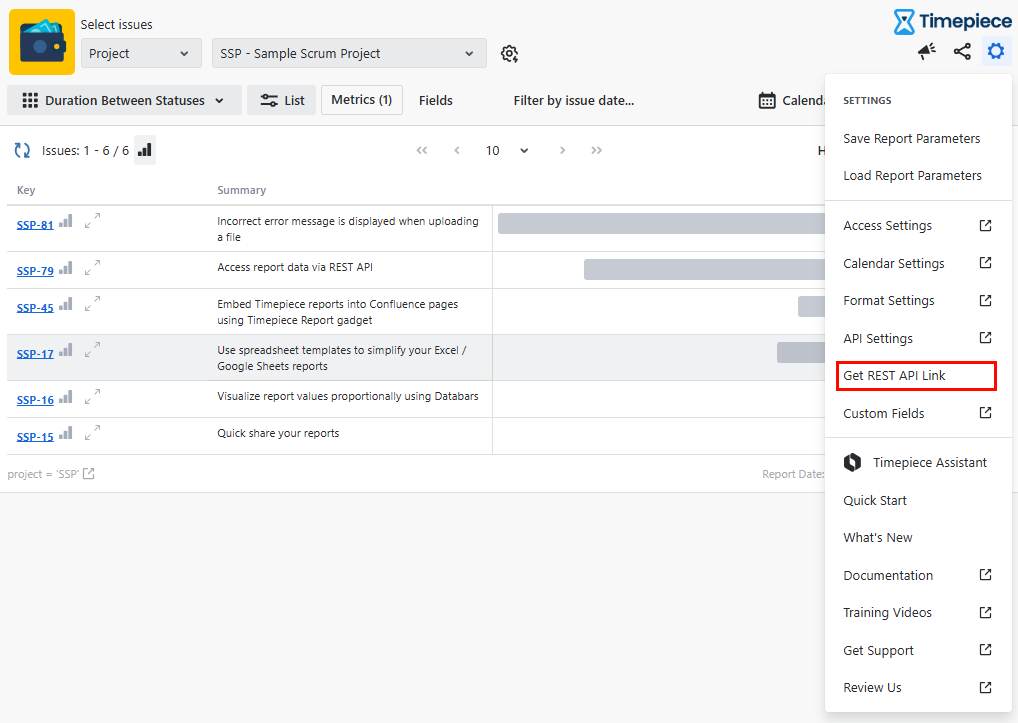
How to Get REST API Link
-
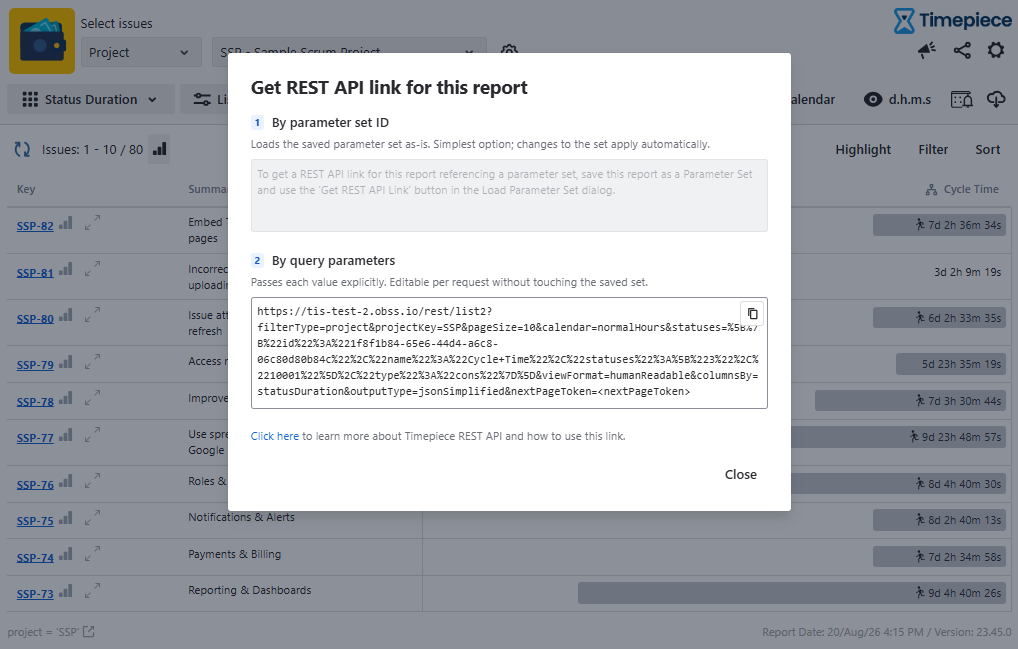
You can either get the URL with all parameters as query params in the URL
-
You can modify these parameters later according to the Timepiece REST API specifications.
-
-
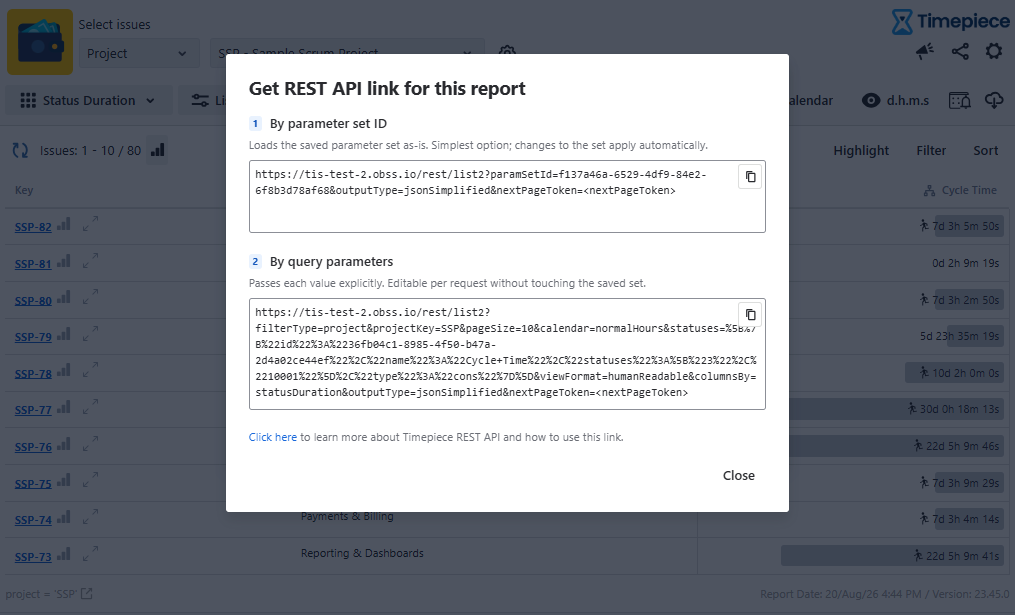
Alternatively, you can get the URL referencing the saved param set of the report.
-
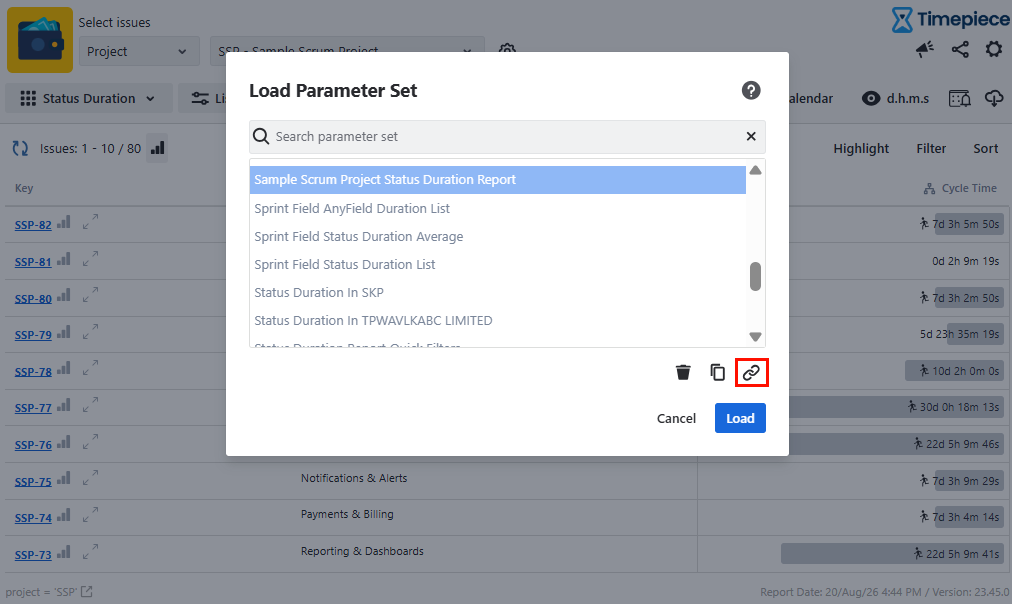
For the param set option, you will need to save the report as a param set first. Then get the link from Load Parameter Set dialog.
-
Remember, if you get a parameter set link, you can also add query parameters to the URL to override the parameters in the param set.
-
API Usage & URL Configuration
-
The URL does not include authentication information. You’ll have to add it yourself as explained here.
-
For List reports, the URL includes a “<next_page_token>” parameter. For your first request, you should remove this parameter. For following pages, you should use the next_page_token returned by your previous request.
-
The Get REST API Link dialog gives you links utilizing /list2 or /aggregation endpoints (depending on the report type). If you want to get your data as a file export, you might want to switch to /smallexport or /export endpoints.
List Report Endpoints
For List reports, the endpoint used by the generated link depends on the report configuration. Reports with sort and/or column filter settings use the /smallexport endpoint, while reports without these settings use the /list2 endpoint.
-
The
/smallexportendpoint returns the report as a single CSV file instead of a paged response. Therefore, it does not usenext_page_tokenorpageSize. -
/smallexportrequires export permission. If the user does not have the required permission, the request returns a 403 error with the message"User does not have export permission!". -
Since the entire report is generated in a single request,
/smallexportis subject to a 60-second time limit. If the calculation exceeds this limit, the request may fail with"Report calculation timed out. Consider using async file export."For large reports, use the asynchronous/exportendpoint instead. -
To get the report as a paged list using
/list2, remove the sort and column filter settings from the report. -
Quick Filter settings do not change the endpoint. Quick Filters are converted to
reportModifierJQL and continue to work with/list2.
Endpoint Routing Rules
-
For List reports, the endpoint used by the generated link depends on the report configuration:
-
Reports without sort or column filter settings use the
/rest/list2endpoint and return a paged response injsonSimplifiedformat. -
Reports with sort and/or column filter settings use the
/rest/smallexportendpoint and return the report as a single CSV file. -
Aggregation reports use /aggregation. Sorting and column filters are supported there and do not change the endpoint.
-