
This article explains how to see how many times each Jira work item was blocked for each reason and status, broken down by month. It uses the ANY FIELD COUNT PER TIME-PERIOD report in Timepiece - Time in Status, with the Block Reason and Status fields selected together as History Fields.
A report based on Block Reason alone shows how many times work items were blocked for each reason. Adding Status also shows at which stage of the workflow those blockages occurred. This helps you identify the workflow stages where blockages occur most often and the reasons behind them.
Business Need
Let’s assume that...
Each of your Jira work items represents a task that needs to be completed. Sometimes, external factors prevent work from progressing.
When a work item is blocked, you select the reason in a Block Reason field while the work item stays in its current status (for example, In Progress or In Review). When the blockage is resolved, you clear the Block Reason field.
You want to see how many times each work item was blocked for each reason and status, broken down by month.
Challenges
Knowing how many times work items were blocked is not enough to improve the process. You also need to know at which stage of the workflow the blockages occurred. Manually matching each blockage with the status of the work item for each reason and month is time-consuming.
Solution
The ANY FIELD COUNT PER TIME-PERIOD report in Timepiece can be used for this purpose.
When Block Reason and Status are selected together as History Fields, the report lists work items in rows. The columns are combinations of Block Reason values, statuses, and months. Each cell shows how many times the corresponding work item held that Block Reason value while in that status during that month.
Step 1: Configure the Report
-
Open the Timepiece reporting page.
-
Select the project containing the work items.
-
Switch to the ANY FIELD COUNT PER TIME-PERIOD report type.
-
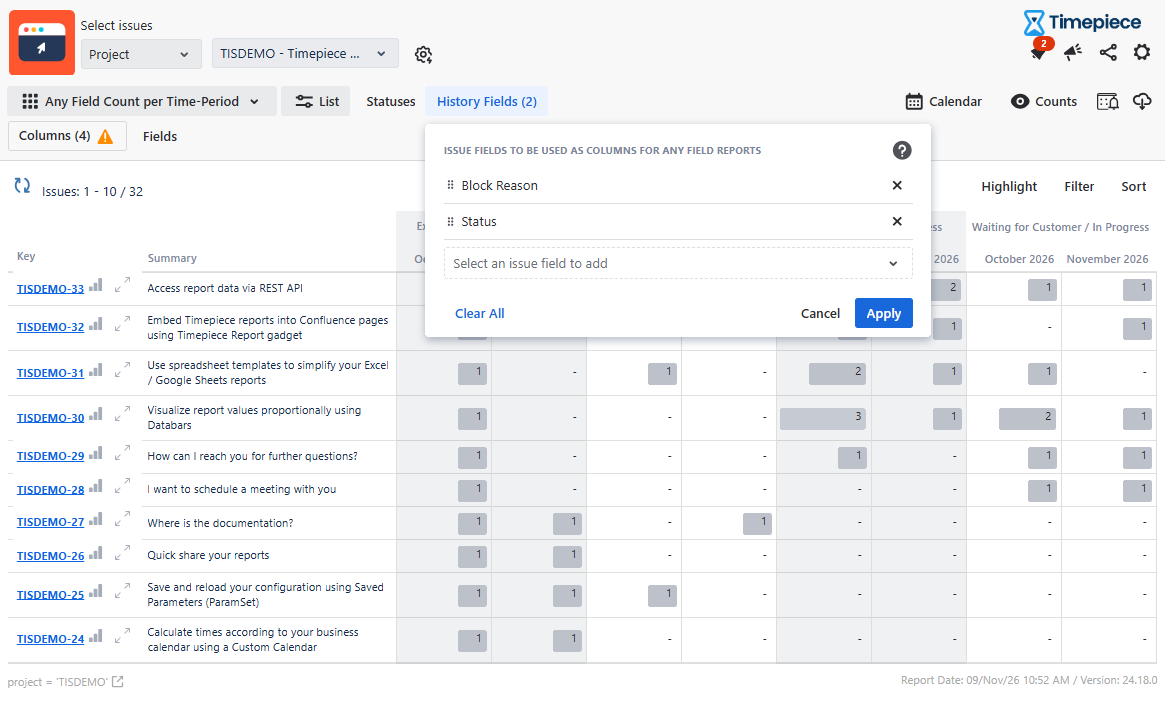
Click the History Fields button.
-
Select Block Reason and Status as History Fields.
-
Click Apply.
-
-
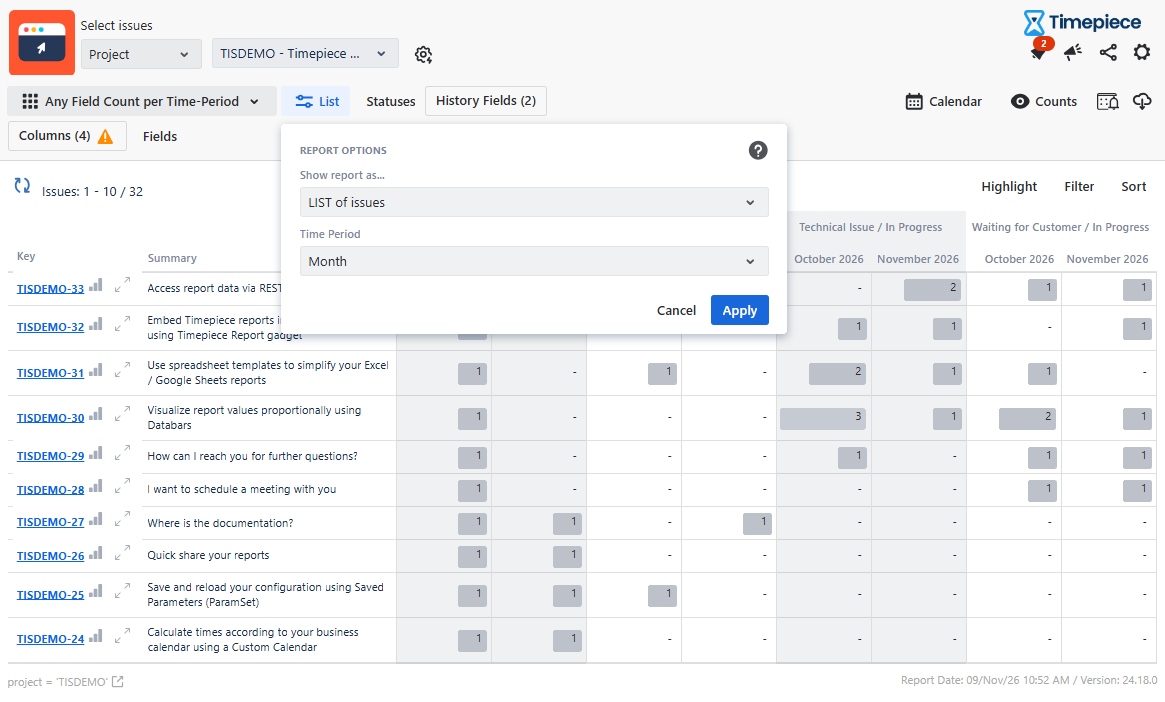
Click the List button.
-
Select Month as the Time Period.
-
Click Apply.
-
-
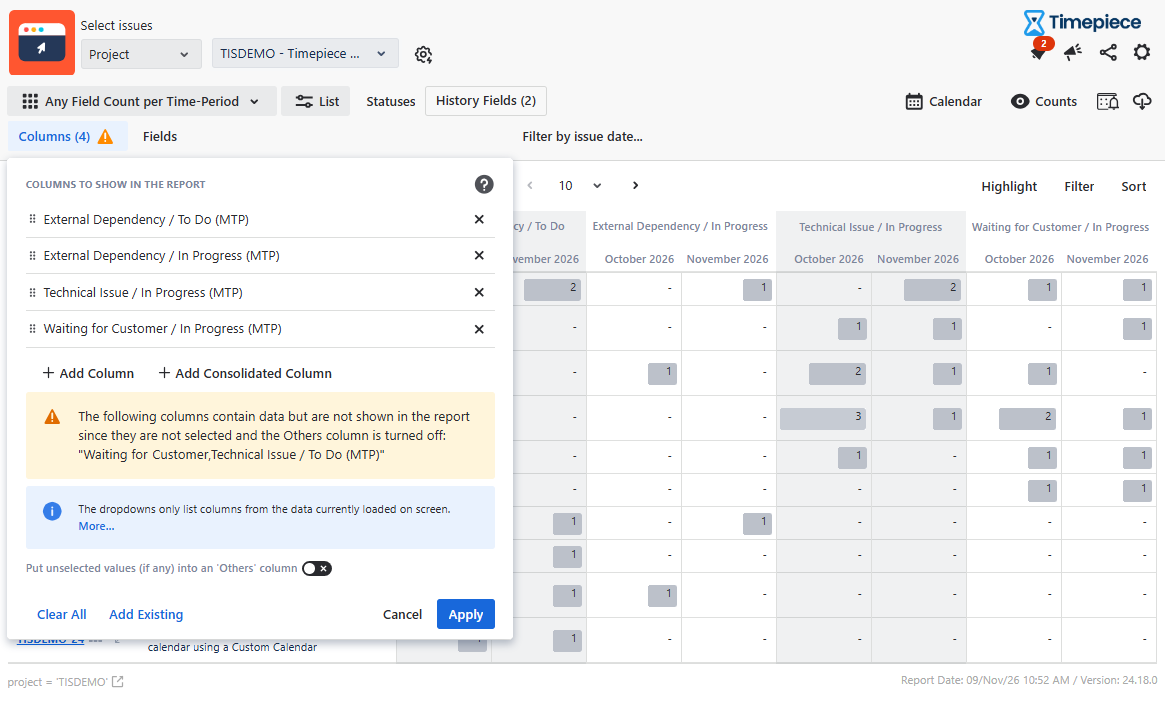
Click the Columns button.
-
Select the Block Reason and Status combinations you want to include as columns, such as External Dependency / In Progress or Waiting for Customer / In Review.
-
Combinations with an empty Block Reason value represent periods when the work item was not blocked. You can leave these combinations out to focus only on blockages.
-
Click Apply.
-
-
Set the start and end dates for the period you want to analyze.
Step 2: Review the Report
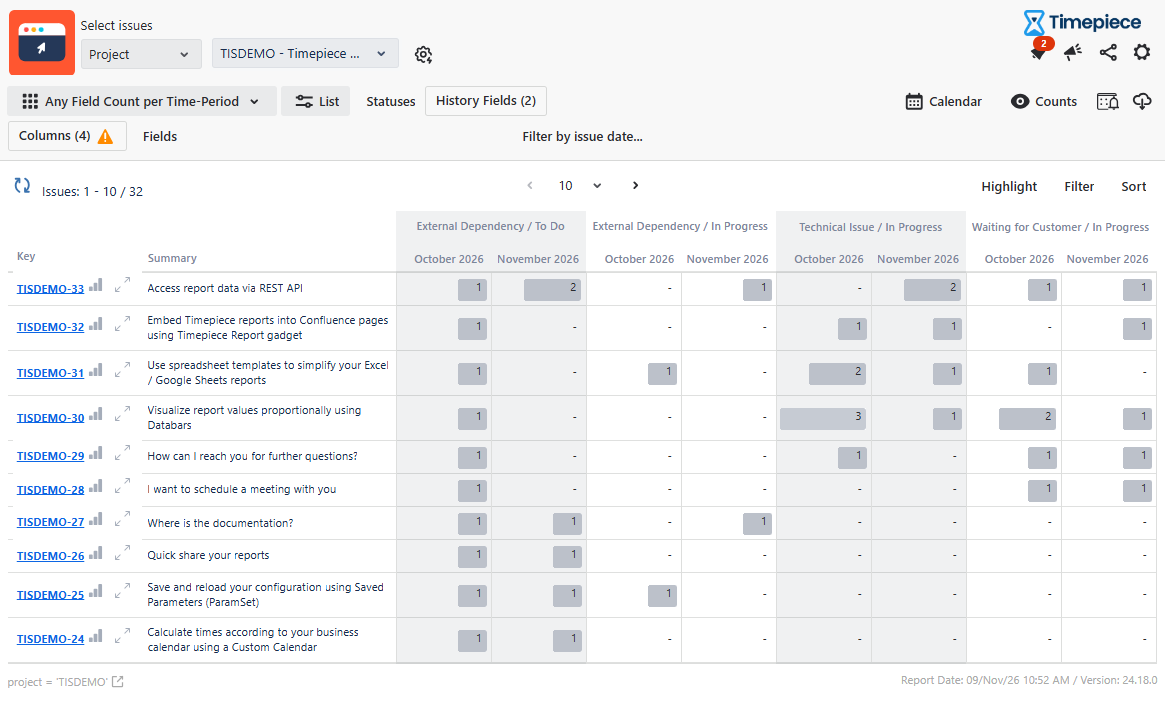
The report shows how many times each work item was blocked for each reason and status in each month.
-
If a work item was blocked for a particular reason while in a particular status during a month, the corresponding cell shows 1.
-
If the work item was unblocked and then blocked again for the same reason in the same status within the same month, the cell shows 2. Each additional occurrence increases the count by 1.
-
If a work item moves to another status while it is still blocked, the blockage is also counted under the new status. This is because the work item now has a new Block Reason and Status combination.
-
If a blockage continues into the following months, the work item shows 1 for each of those months as well, because it continued to hold that Block Reason and Status combination during those months.
This helps you identify the workflow stages where work items are blocked most often, the reasons behind these blockages, and when they occurred.
You can also switch to the Time-Period Count per Any Field report type to display the same data with months as the top-level columns. This way, all Block Reason and Status combinations for a given month appear side by side.
Additionally, if you want to see the total time work items were blocked for each Block Reason per month, you can use the Any Field Duration per Time Period report.
For more information about this report type, see Report Types.