
This article explains how to see how many work items each team was responsible for in each month, using the ANY FIELD COUNT PER TIME-PERIOD report in Timepiece - Time in Status with a team field such as Assigned Team and the Sum option.
The report counts every work item that was assigned to each team during each month, including work items that were handed over to another team before the month ended. This shows how work is distributed between your teams and how each team’s workload changes over time.
The Situation
Your organization uses Jira, and the team responsible for each work item is recorded in a custom field such as Assigned Team. As work moves through the process, work items are often transferred from one team to another.
You want to see how many work items each team had every month.
What Makes This Hard
Reports based on the current value of the Assigned Team field show only which team owns the work items today. A work item that was transferred during the month is counted only for its last team, so the work done by the teams that handled it earlier is not reflected. Going through work item histories to count these assignments team by team and month by month is time-consuming.
The Approach
The ANY FIELD COUNT PER TIME-PERIOD report in Timepiece can be used for this purpose.
When Assigned Team is selected as the History Field and the report is displayed with the Sum option, the report shows a single row with combinations of teams and months as columns. Each cell shows how many work items the corresponding team was responsible for during that month.
Configuring the Report
-
Open the Timepiece reporting page.
-
Select the project containing the work items.
-
Switch to the ANY FIELD COUNT PER TIME-PERIOD report type.
-
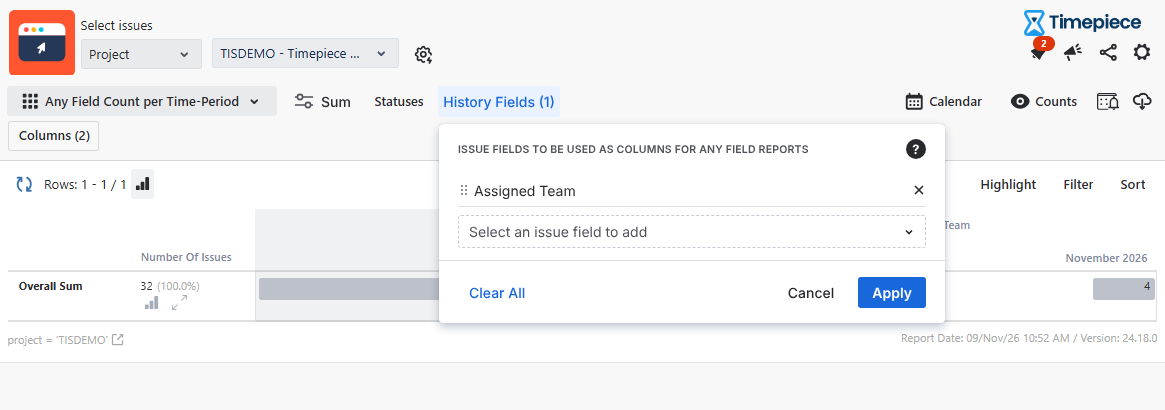
Click the History Fields button.
-
Select Assigned Team as the History Field.
-
Click Apply.
-
-
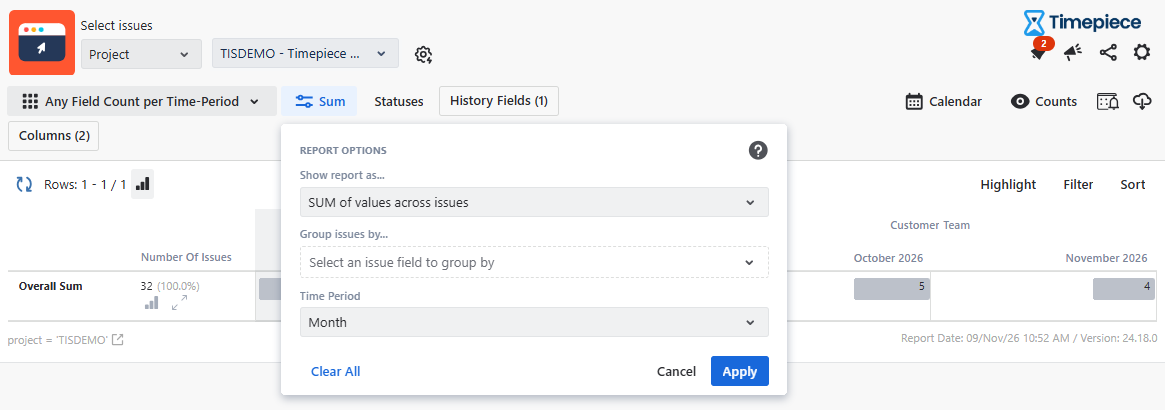
Click the List button.
-
Select Sum in the Show report as dropdown.
-
Leave the Group By fields empty.
-
Select Month as the Time Period.
-
Click Apply.
-
-
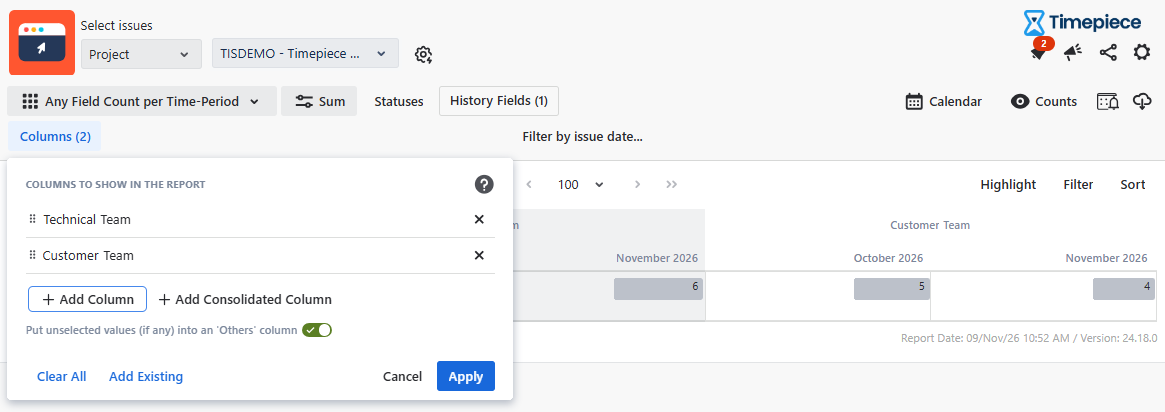
Click the Columns button.
-
Select the teams you want to include as columns. (You can leave this selection empty to include all teams.)
-
The empty value (“-”) represents the periods when no team was assigned to the work items. You can leave it out to focus only on assigned work items.
-
Click Apply.
-
-
Set the start and end dates for the period you want to analyze.
If a work item is assigned to the same person more than once, it is counted more than once. Additionally, if a work item remains assigned to the same team for multiple months, it is counted in each month.
The results let you compare the workload of your teams, see which teams receive the most work items, and track how the distribution of work changes from month to month.
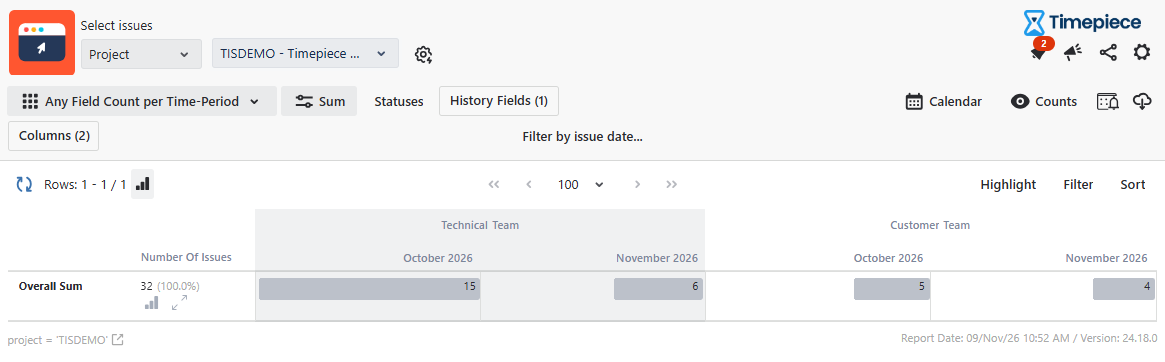
To compare teams within the same month more easily, switch to the Time-Period Count per Any Field report type. It displays the same data with months as the top-level columns, so all teams for a given month appear side by side.
Additionally, if you want to see the total time work items spent with each team each month, you can use the Any Field Duration by Time Period report with the Team field selected.
For more information about this report type, see Report Types.